
Wifi Security Weak

WiFi Security Weak: Understanding and Fixing the Issue
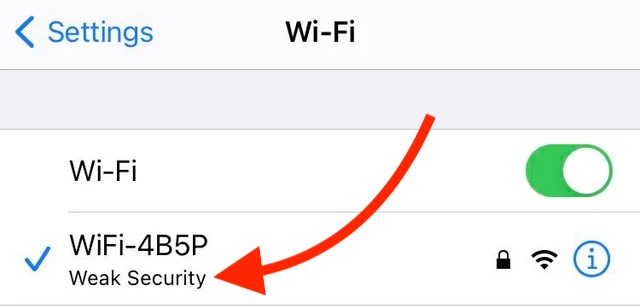
Have you ever seen a “Weak Security” warning on your iPhone when connecting to a WiFi network? This message can be confusing and concerning, but it’s essential to understand what it means and how to fix it.
What is the “Weak Security” Warning?
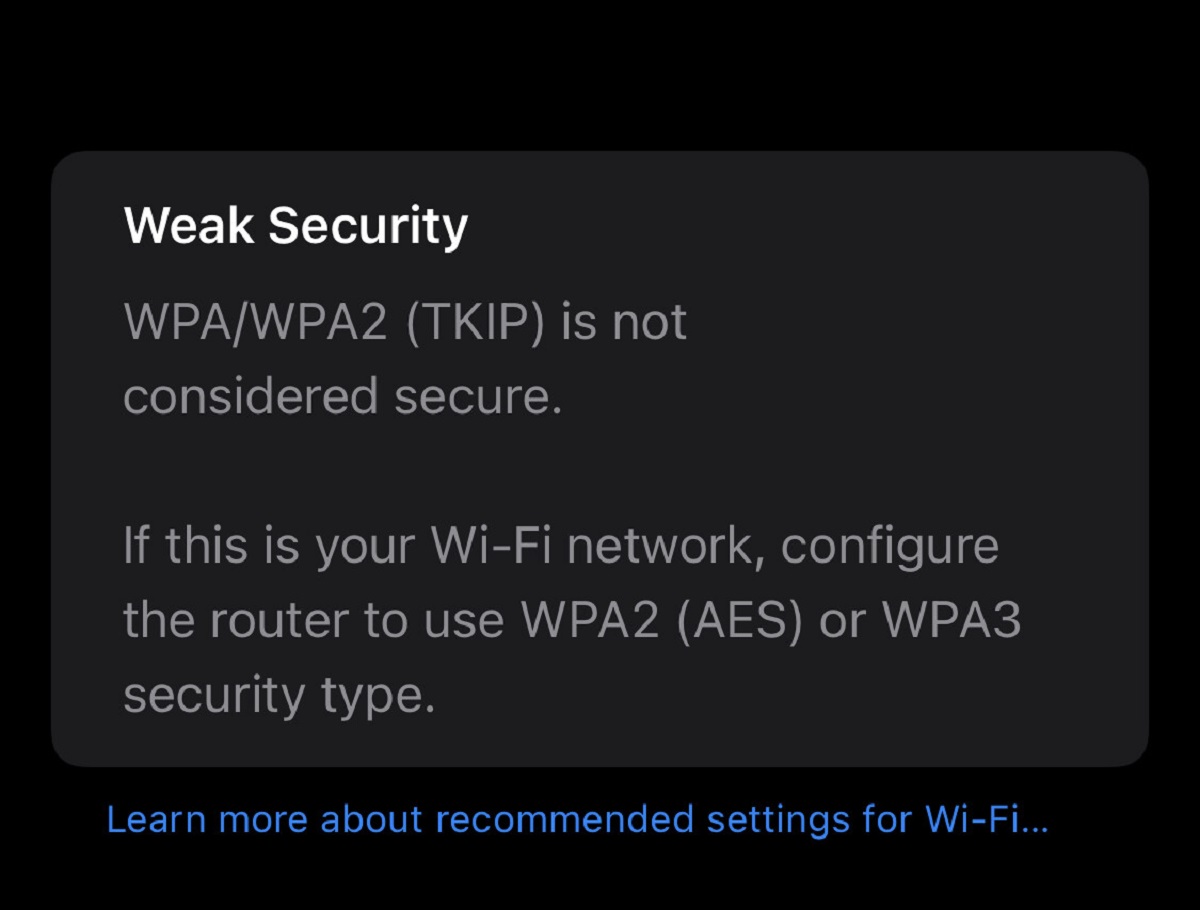
The “Weak Security” warning appears when your iPhone detects that the WiFi network you’re connected to uses an older, less secure encryption method. This can include WEP (Wireless Equivalent Privacy), WPA (WiFi Protected Access), or WPA2 (TKIP). These protocols are no longer considered secure and can put your data at risk.
Why Does My WiFi Say “Weak Security”?
The reason you’re seeing the “Weak Security” warning is that your router is using an outdated security protocol. This can be due to various reasons, such as:
- Older routers may not support newer security protocols like WPA3 or WPA2 (AES).
- The router’s settings may not have been updated to use the latest security protocols.
How to Fix the “Weak Security” Issue?
To fix the issue, you need to update your router’s settings to use a more secure encryption method. Here are the steps:
- Access your router’s settings by typing its IP address in a web browser.
- Login to your router using the admin username and password (usually printed on the router or found online).
- Look for the wireless security settings and update them to use WPA2 (AES) or WPA3.
What if I’m Using a Public WiFi Network?
If you’re connecting to a public WiFi network, you may not have the ability to change its settings. In this case, it’s best to use a VPN (Virtual Private Network) to encrypt your internet traffic and protect your data.
Conclusion
The “Weak Security” warning on your iPhone is an indication that your WiFi network is using an outdated security protocol. By updating your router’s settings to use a more secure encryption method, you can ensure the safety of your data and avoid potential security risks.